
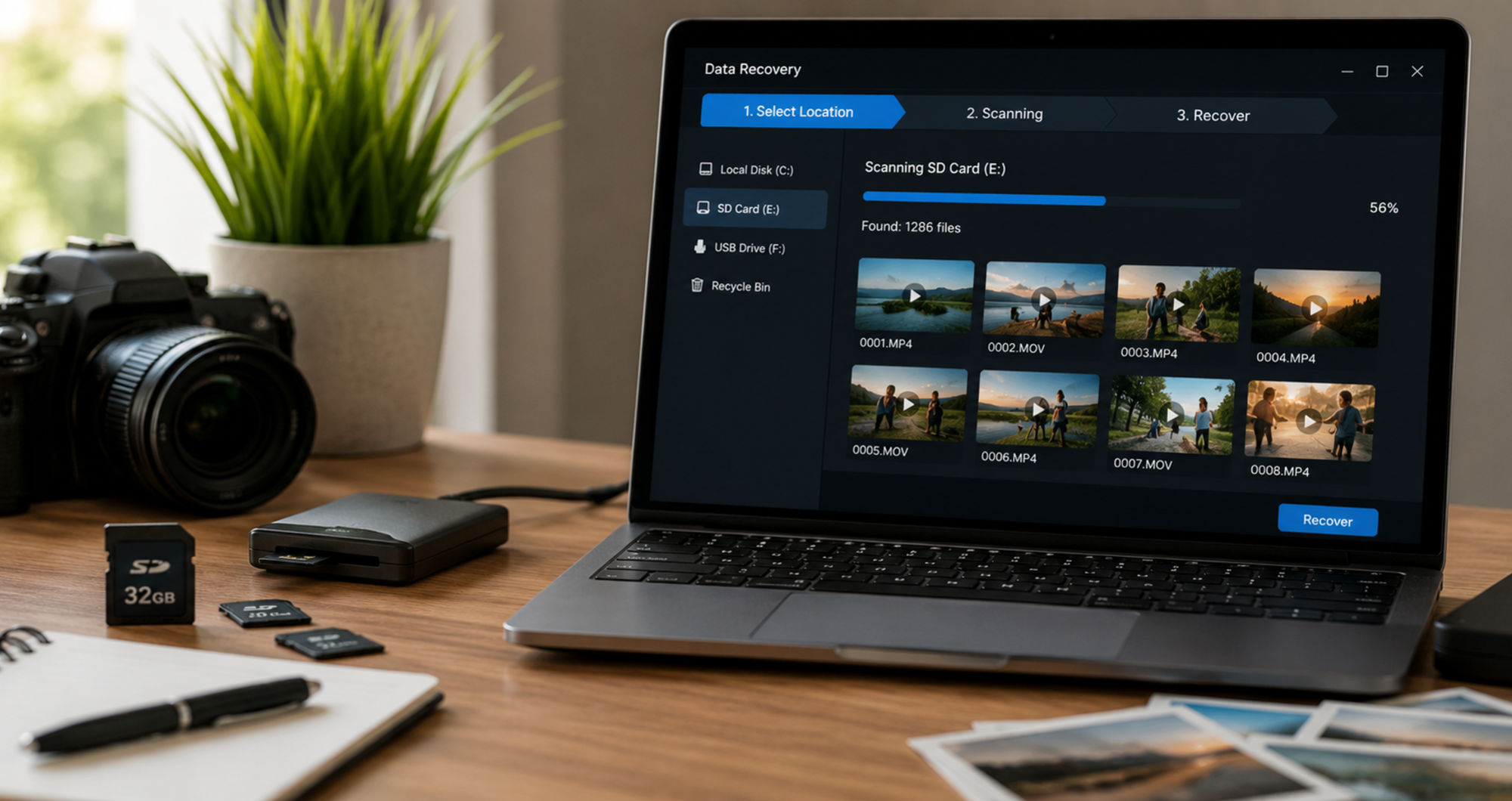

Losing videos from an SD card can feel overwhelming, especially when the files include travel footage, family moments, client work, drone clips, wedding recordings, or classroom materials. In many cases, however, missing videos are not gone forever. If the storage space has not been fully overwritten, there is still a chance to restore deleted or inaccessible files with the right recovery workflow.
This guide explains what usually causes SD card video loss, what you should do immediately after the incident, and how to recover lost video from an SD card on a Windows computer in a practical step-by-step way. If you are comparing recovery tools, a solution like Recoverit is often considered because it is built for common file loss scenarios and offers a straightforward process for scanning, previewing, and restoring media files on PC.
Why Videos Go Missing from an SD Card
Video loss can happen in several different ways, and understanding the cause can help you choose the right response. Some issues are logical, which means the files are still physically present but no longer accessible through the normal folder view. Others are hardware-related and may require more caution.
- Accidental deletion: You removed clips by mistake while reviewing files on a camera, phone, or computer.
- Formatting: The card was formatted intentionally or by accident, often after a device prompts you to reformat it.
- File system corruption: An unsafe ejection, sudden power loss, or interrupted transfer damages the card structure.
- Virus or malware activity: Files may disappear, become hidden, or turn into unreadable shortcuts.
- Transfer interruption: Disconnecting the card during copying can break or partially save video files.
- Compatibility issues: Some cameras, drones, dash cams, and other devices write data in ways that become problematic when moved across devices.
For Windows users, this type of issue usually starts with a simple symptom: the SD card is detected, but the expected videos are missing, corrupted, or no longer playable. That is exactly where a structured Windows Data Recovery workflow becomes useful.
What to Do Immediately After Video Loss
The first few actions matter a lot. When a video is deleted from an SD card, the file data may remain on the card until new content overwrites it. This means your recovery chances can decrease if you continue using the same card right away.
Important: Stop recording new videos, stop copying new files to the SD card, and avoid formatting the card again unless a trusted recovery process specifically requires it later.
Here are the safest first steps:
- Remove the SD card from the device where the data loss happened.
- Do not shoot more footage or save any new media to the same card.
- Use a reliable card reader to connect it to your Windows PC.
- Check whether the card appears in File Explorer or Disk Management.
- If the card is detected, begin a scan before attempting risky manual fixes.
Can Lost Videos from an SD Card Really Be Recovered?
In many everyday data loss situations, yes, recovery is possible. That said, no software can guarantee that every file will come back intact. Actual results depend on several factors, including whether the original storage sectors were overwritten, how severe the corruption is, and whether the SD card has underlying physical damage.
Generally speaking, video recovery tends to be more realistic when:
- the deletion happened recently,
- the SD card was not used afterwards,
- the card still appears in Windows, and
- the file system issue is logical rather than physical.
If your card contains MP4, MOV, AVI, MTS, or similar video formats from cameras, action cams, drones, phones, or dash cams, it makes sense to use a tool focused on SD Card Recovery rather than relying only on manual folder checks.
What to Look for in SD Card Video Recovery Software
Not every data recovery program is equally convenient for media-heavy workflows. When the goal is to recover lost video from an SD card on Windows, it helps to look for a few practical capabilities:
- Support for removable storage: The tool should clearly recognise SD cards and microSD cards through a card reader.
- Media file scanning: Video formats should be easy to identify and filter.
- Preview or file detail view: Even if full preview is not available for every damaged clip, being able to inspect file names, sizes, or paths helps.
- User-friendly workflow: A three-step process is easier for non-technical users.
- Recovery to a different location: The software should let you save restored files somewhere other than the original SD card.
For casual users, creators, and office users working on Windows, usability matters almost as much as scan depth. A complicated tool may increase the risk of mistakes, especially when the user is already stressed by missing footage.
How to Recover Lost Video from SD Card on Windows
Below is a simple guide-style workflow that many users follow when trying to restore lost videos from an SD card. The steps are straightforward and are especially suitable for people who want to move from detection to scanning and then to selective recovery without a technical learning curve.
Step 1: Connect the SD Card and Select the Device
Insert your SD card into a stable card reader and connect it to your Windows PC. Open the recovery tool and look for the removable storage section. Select the SD card where the lost videos were originally stored.
This step may sound simple, but it is important to verify that you are choosing the correct card, especially if multiple drives are attached. Check the drive size, label, or device letter so you do not waste time scanning the wrong storage location.
Step 2: Run a Scan to Search for Lost Videos
Start the scan and allow the software to search the SD card for deleted, lost, hidden, or inaccessible files. Depending on the card size, the amount of data, and the condition of the file system, scanning may take a while.
During this stage, it is helpful if the software lets you filter by file type, path, or search keywords. If you are only trying to recover video footage, narrowing the results can save time and reduce confusion. Many users choose to focus first on MP4, MOV, M4V, AVI, or camera-specific video extensions.
Step 3: Preview Results and Recover to a Safe Location
Once the scan finishes, review the results carefully. Preview or inspect the found files where possible, then select the videos you want to restore. Save them to a different location on your computer, an external hard drive, or another storage device. Avoid restoring them directly back to the same SD card, as that can increase the chance of overwriting other recoverable data.
After recovery, test the video files to confirm whether they open normally. If some clips are partially damaged, you may still want to keep them, because even incomplete footage can sometimes be valuable for personal or professional use.
Practical Situations Where This Guide Helps
SD card video recovery is not limited to photographers. This type of guide is relevant for a wide range of users on Windows:
- Content creators: Lost vlog clips, drone footage, YouTube raw files, or social media video assets.
- Travellers and families: Vacation videos, event footage, or personal memory clips deleted by mistake.
- Freelancers and videographers: Client recordings, product demos, interview footage, or project b-roll.
- Students and teachers: Class recordings, presentation videos, and lab documentation.
- Dash cam and action cam users: Files lost after sudden card errors, accidental formatting, or unreadable storage prompts.
These scenarios are valuable because they combine emotional urgency with practical search intent. People searching for “recover lost video from SD card” usually want fast, concrete action rather than abstract technical explanations.
Common Mistakes That Reduce Recovery Chances
Even when recovery is possible, users sometimes make the problem worse before they begin scanning. If you want the best possible outcome, try to avoid these common mistakes:
- Continuing to record on the same SD card after noticing the loss
- Formatting the card multiple times
- Saving recovered files back to the original card
- Using unreliable adapters or unstable USB hubs
- Running random “repair” commands without understanding the risk
- Assuming the files are unrecoverable before performing a proper scan
For many users, the safest approach is to keep the card untouched, scan it from Windows, and move recovered videos to a healthy storage location immediately.
Why a Tool-Based Recovery Approach Makes Sense
Manual methods have limits. If the videos are not visible in File Explorer, they usually will not reappear just because you reconnect the card. A dedicated recovery workflow is more practical because it is designed to examine lost file records and storage areas that Windows does not normally show to the user.
This is where a tool such as Recoverit can fit naturally into the process. For readers who arrive through a troubleshooting or how-to article, the value is clear: the tool is not presented as a vague all-purpose utility, but as a direct response to a specific loss scenario involving removable media and Windows recovery steps.
Extra Tips to Protect SD Card Videos in the Future
Recovery matters, but prevention matters too. If you work with important footage often, a few good habits can reduce the risk of future losses:
- Back up videos to your PC right after shooting.
- Keep a second backup on external storage or cloud storage.
- Use trusted memory cards from reliable brands.
- Safely eject the card before removing it from the computer.
- Format the card in the original recording device when appropriate, not randomly across multiple devices.
- Replace ageing or frequently corrupted SD cards before they fail at an important moment.
These habits are especially useful for creators and business users who cannot afford to lose source footage. While prevention will never replace recovery software completely, it can reduce dependence on emergency recovery in the first place.
Final Thoughts
If you need to recover lost video from an SD card on Windows, the most important thing is to act carefully and quickly. Stop using the card, connect it safely to your computer, run a structured scan, and restore the files to another location. In many common deletion and formatting scenarios, this process gives users a reasonable path to getting valuable footage back.
For readers looking for a simple workflow, a recovery solution built for removable media, Windows PCs, and media file scanning can be a practical starting point. Whether the missing clips come from a camera, drone, dash cam, or phone storage card, the right recovery steps can make a meaningful difference.