

One of the biggest challenges my gardening channel had early on was clarity issues. I had a tough time with wind noises, swaying trees, animal sounds, and farm machinery among other interferences. These forced me to either upload content with mediocre audio or spend extra hours recapturing footage. So, I needed to find ways to remove background noise from audio ASAP.
In this guide, I’ll share three simple methods that help me clear unwanted sounds from recordings. Stick around for details about the best background sound remover tools, including steps to use them.
1. Remove Background Noise from Audio with Media.io
One of the main things I love about Media.io Noise Reducer is its powerful noise reduction feature with cutting-edge AI that ensures high-quality outputs. It removes several noise types, catering to different use cases.
It offers online and app-based (Windows) background noise removal. This flexibility makes it suitable for different video editing scenarios—whether you’re looking for a more intuitive and faster app performance or are short on space and want to remove noise from audio online for free. Whichever option you select, Media.io Noise Reducer is super-easy to use.
Here’s an overview of Media.io Noise Reducer’s key features:
- Support diverse audio and video formats: You can upload MP3, AU, M4A, and OGG audios and MP4, MTS, MOV, and VOB videos, besides other formats.
- Removes different background noises: It uses smart AI technology that recognises and removes various interferences, such as wind, buzzing, hissing, clicks, and fan noises.
- Customised noise reduction: You can adjust the background noise removal to suit different needs.
- Securely remove background sound from music, videos, and recordings: Media.io Noise Reducer deletes all uploads within a day.
- Extra sound editing tools: It features vocal removal, song mixing, AI music generation, acappella extraction, audio compression, etc.
Want to enjoy this feature-packed background sound remover online? Follow these steps to use it:
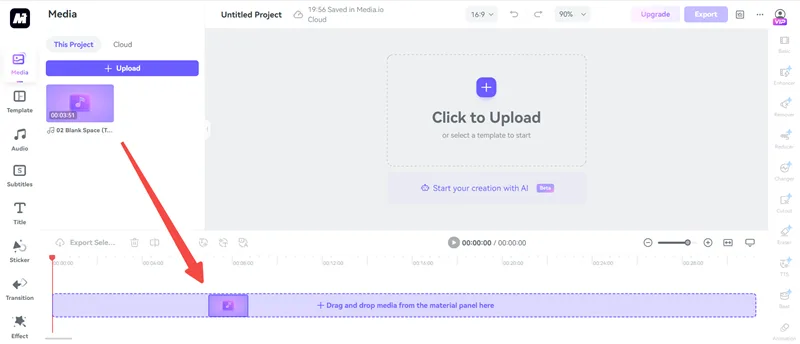
STEP 1. Open the Media.io Background Sound Remover, upload your audio/video file, and drag and drop the file into the timeline.
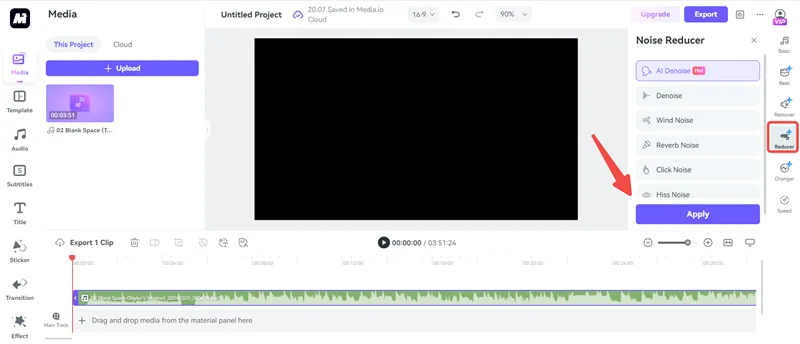
STEP 2. Click the “Reducer” button on the right toolbar. Select the noise type you want to remove from the list and click “Apply”.
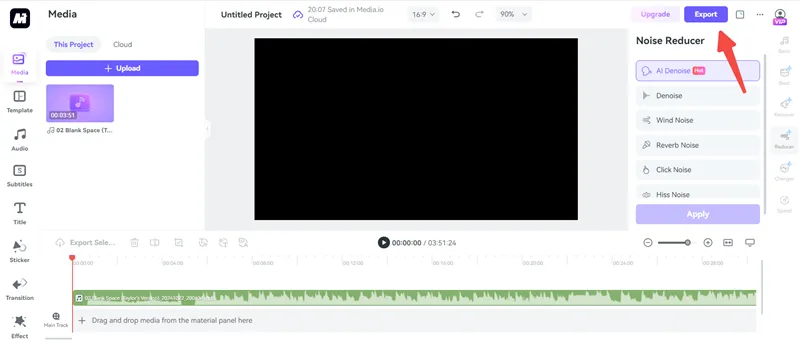
STEP 3. Wait for the request to process and preview it. Once satisfied, click “Export” and save the processed result in your desired location.
2. Remove Background Noise from Audio with Audacity
Although Media.io Noise Reducer is my favourite tool, it requires a stable network. If no Internet is available around you, is there any alternative for noise reduction? Of course, there is. You can try Audacity, a free and open-source desktop audio editor software. Not only can it record and edit any voice and sound, but it also offers a noise-reduction feature best for removing a constant source of noise.
Do note that Audacity may affect your video/audio quality, sometimes won’t eliminate all the noise, requires manual adjustment, and has a complex interface. Nevertheless, it’s a great noise reducer if you’re looking for an app for offline editing.
Follow these steps to remove background noise using the Audacity app:
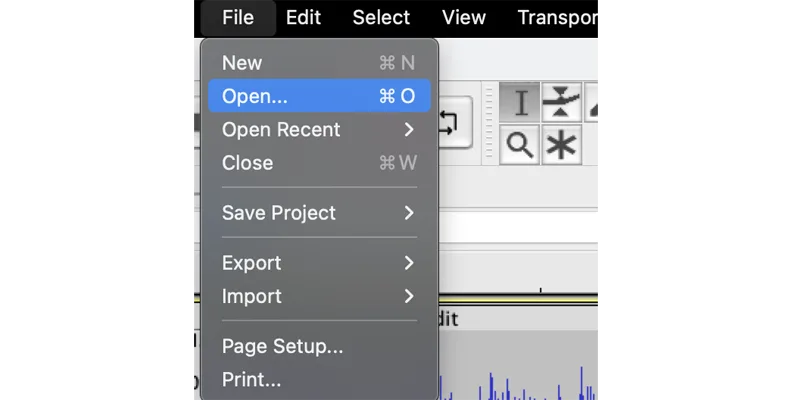
STEP 1. Download and launch Audacity. Head to the menu, select “File” > “Open,” and access the audio you want to edit.
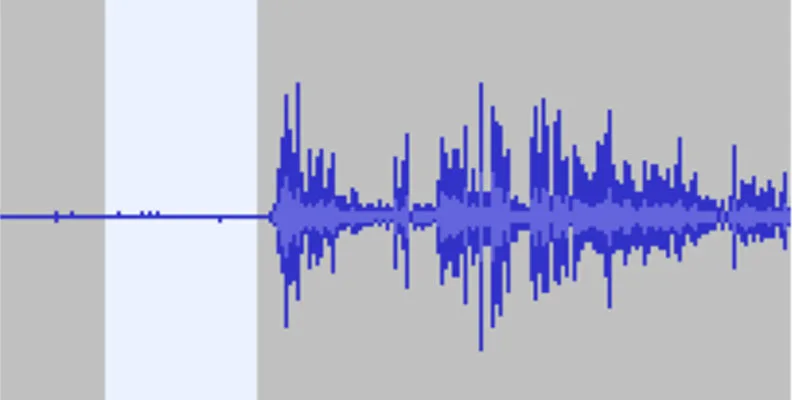
STEP 2. Left-click your mouse or touchpad and drag the cursor to select a few seconds of silence. These help Audacity distinguish between recorded voices and ambient noise. Ideally, capture some silence before or after your recording.
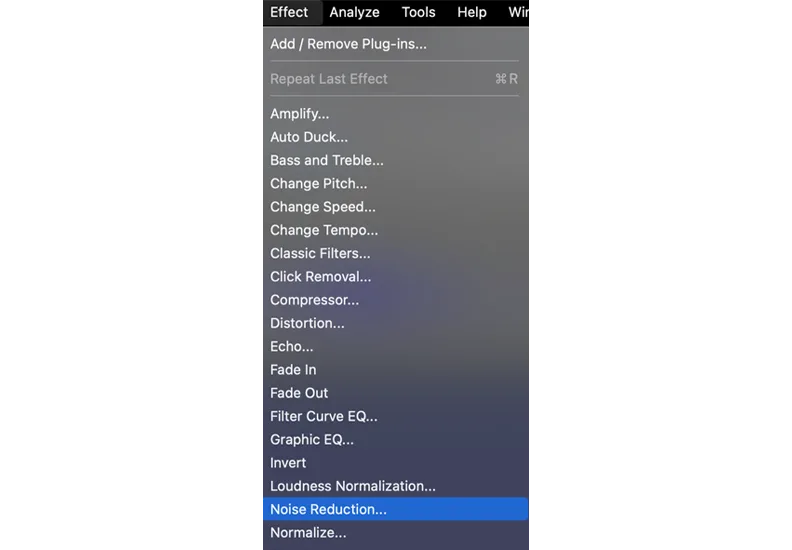
STEP 3. Click “Effects” > “Noise Reduction.”
STEP 4. Tap “Get Noise Profile” in the pop-up box to enable Audacity to generate a noise profile. The tool will use this profile to remove only the recording’s ambient noise. You can now select a section or the entire file to apply the effect.
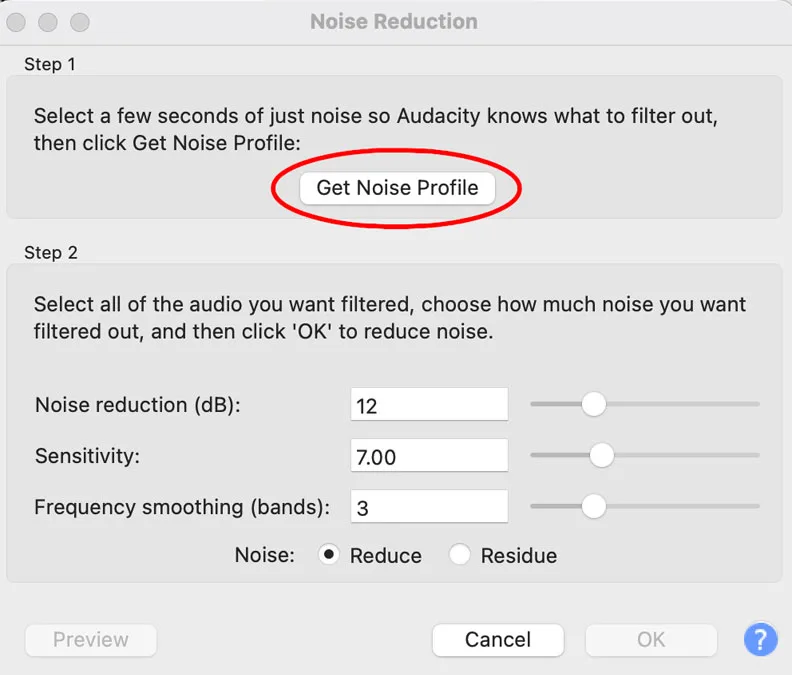
STEP 5. Head to “Effects” and re-open the “Noise Reduction” pop-up box. Adjust the three settings to your liking, check the “Reduce” button, and click “Preview.” If you like the changes, hit “OK” and save your audio.
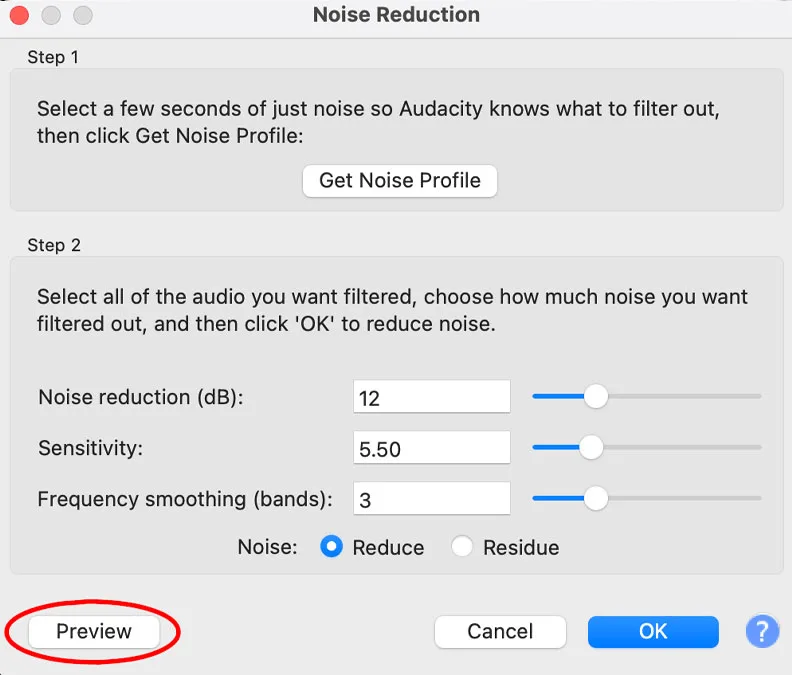
Note: Audacity’s noise reduction settings work as follows
- Noise Reduction: Alters the volume level at which the reduction effect applies.
- Sensitivity: Adjust the amount of your recording that appears as noise/original track. A low setting removes noise without eliminating the audio signals you want to preserve.
- Frequency Smoothing (bands): It spreads the reduction effect to adjacent bands to curb audio elements produced by sensitivity settings. You can leave it at zero for tracks with strong original sounds and little background noises.
- Reduce: Eliminate background noises.
- Residue: Select it to hear what Audacity will remove. If key audio signals are within the residue, adjust the “Sensitivity” and “Noise Reduction” levels.
3. Remove Background Noise from Audio with Premiere Pro
Another great alternative for noise reduction on a desktop is Adobe Premiere Pro. It is widely used for video editing in film, television, and online video industries. Apart from its powerful video editing features, it also works very well in audio editing, including reducing background noises. Premiere Pro features a decent solution for background noise removal called “DeNoise.”
That said, the removal process isn’t beginner-friendly, as Premiere Pro offers a relatively complicated user interface and thus has a steep learning curve. Plus, the tool is expensive and has high hardware requirements.
To use Premiere Pro for background noise reduction:
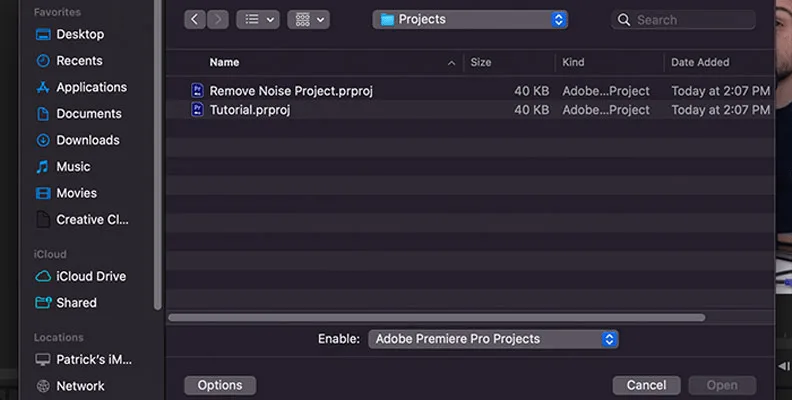
STEP 1. Download and launch Premiere Pro and open your project. Select the first clip if you have several.
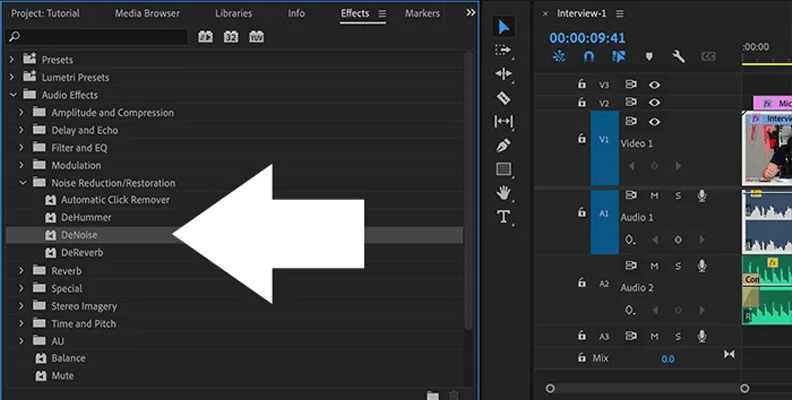
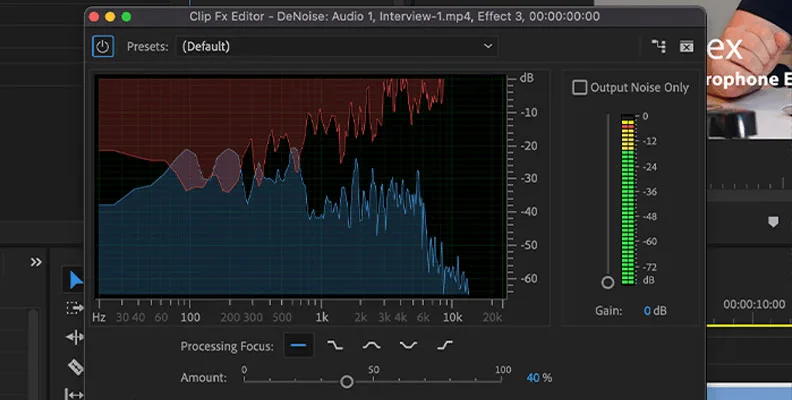
STEP 2. Go to the “DeNoise” effect by navigating through “Window” > “Effects” or clicking “Noise Reduction/Restoration” from “Audio Effects.” Next, drag and drop “DeNoise” to your clip.
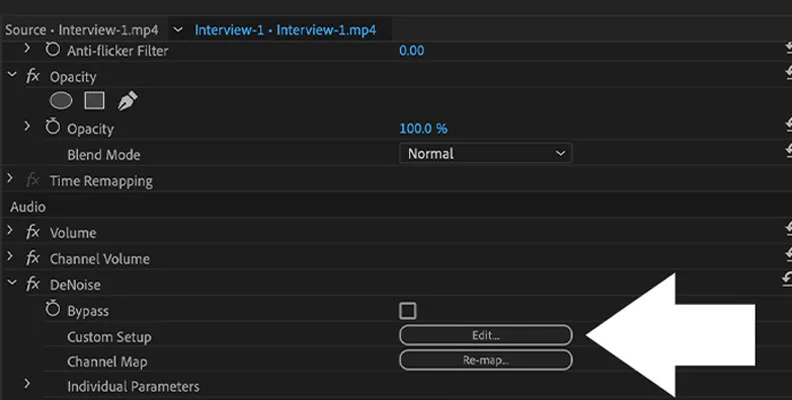
STEP 3. Click the “Effects Control Panel,” go to “DeNoise,” and click “Edit.”
STEP 4. Alter the audio frequencies or leave the defaults in the new window. Play your audio and adjust the “Amount” slider at the bottom to apply an appropriate noise reduction level. Close the window if you’re happy with the outcome.
FAQs About Removing Background Noise from Audio
What Is Background Noise?
Background noises refer to unwanted sounds and interferences while listening/monitoring a given audio. Examples include electrical device noises from a refrigerator or fan, bioacoustic animal noise, extraneous speech, traffic sounds, wind, water waves, and alarms.
These interferences reduce audio clarity and make it challenging to filter speech without losing key details. As such, finding a good tool to remove background noise from video and audio, such as Media.io Noise Reducer, is crucial.
Is There an iOS App to Remove Background Noise from Audio?
Yes. You can strip noise from audio/video on iOS using iMovie. To do so:
- Select the audio/video from your gallery by tapping “Create Project” > “Movie.” on iMovie.
- If the noise is in a specific part of the audio without main sounds, go to the timeline and click “Detach.” Afterward, right-click the detached audio and tap “Delete.”
- If the background noise occurs while the main sounds play, select the audio clip and click the “Equalizer” and “Noise Reduction” buttons from the toolbar. Tick the box next to “Reduce background noise” and move the percentage knob to a desired sound level.
Conclusion
In this article, I have walked through the three useful tools to reduce background noises from audio according to my experience. If you want a solution that works on all devices, try Media.io Noise Reducer. If you don’t have a network but still need noise reduction, desktop software like Audacity and Premiere Pro can help.
However, if you are looking for a fast and effective method, Media.io would be the best choice, thanks to its cutting-edge AI that removes various noise types. This easy-to-use noise reducer is a flexible tool that supports multiple audio and video types. Get Media.io Noise Reducer for fast, straightforward, and high-quality background noise removal!