
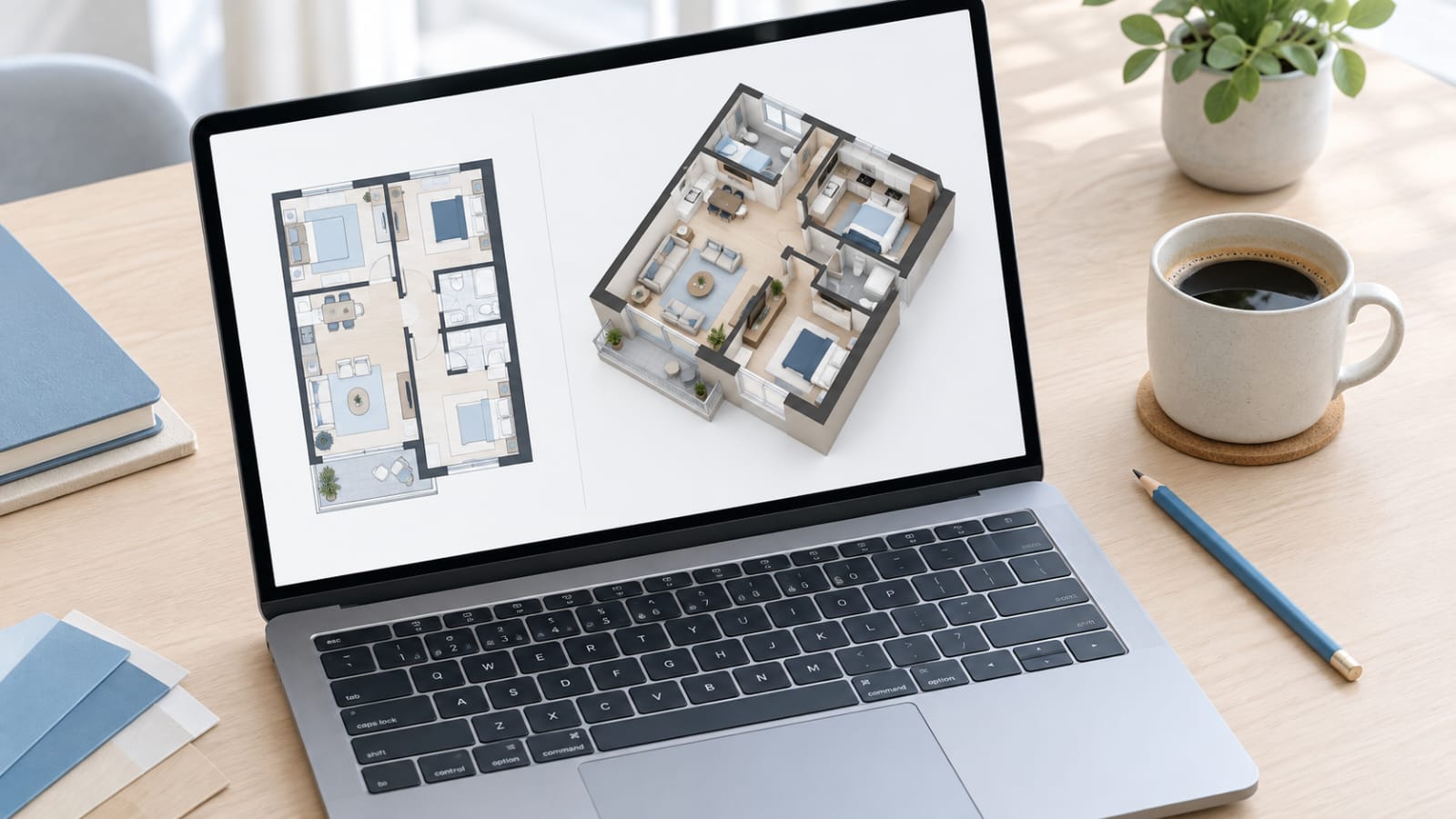

Two different problems come up constantly when people plan a space. One is “I already have a floor plan; I just want to see it in 3D.” The other is “I don’t have a plan at all; I need to build one from scratch.” Free tools have emerged to handle each of these separately rather than trying to be one thing for everyone, and knowing which problem you actually have determines which tool is worth your time.
The First Problem: Turning an Existing 2D Plan Into 3D
If a floor plan already exists somewhere (a hand-drawn sketch, an old architect’s PDF or a flat image from a property listing), the job is converting it into a clear 3D visualisation rather than creating a layout from nothing. This is exactly what a free 3D floor plan tool is built to do. You upload an existing plan in a common format such as JPG, PNG or PDF, choose a presentation style, a viewing angle and a background, and the tool generates a 3D version while keeping your uploaded plan as the structural reference underneath it.
What makes this approach useful is that it doesn’t ask you to rebuild anything. The original layout, including room shapes, wall placement and door positions, stays intact while the tool adds the third dimension on top. You can choose between a furnished or unfurnished result, pick from viewing angles such as top-down, isometric, aerial or eye-level, and set a background depending on whether you want something clean and neutral or a bit more contextual. The whole process runs through three steps: upload the plan, customise how it’s presented, and generate the finished 3D view.
The Second Problem: Building a Plan From Nothing
The opposite situation is more common than people expect: there is no existing plan, just a rough idea of what a space needs to include. This is where Floor Plan Generator fits. It lets you describe your requirements in plain language or set structured parameters (room count, floor area and layout type) and then generates a 2D or 3D plan directly from that description, without requiring you to draw anything first.
The workflow starts with choosing a space type: a house, an office, or a custom layout for something like a flat, studio or garage. From there, you either describe your needs in a sentence or two, or use structured fields such as room counts, total area and extra spaces like storage. The tool then builds a connected, dimension-aware layout automatically, and you can choose whether the output comes back as a clear 2D technical drawing or a more visual 3D version.
Why the Distinction Between These Two Tools Actually Matters
It’s tempting to think of “3D floor plan tools” as one category, but the starting point changes everything about which tool actually solves your problem. If you’re renovating a house you already live in and you have an old blueprint or even just a rough sketch of the current layout, converting that existing plan into 3D preserves the accuracy of what’s actually there, which matters if you want the visualisation to reflect real room proportions. Building a brand-new plan from a text description works well for early concept exploration, such as testing an idea for a completely new space, but it starts from an AI’s interpretation of your description rather than a real, measured layout.
Using the wrong tool for your actual situation wastes time. Trying to describe an existing home’s layout in a text prompt, when you already have a photo or scan of the real floor plan, means re-explaining something you could simply have uploaded. Conversely, uploading a rough sketch to a conversion tool when you don’t yet have a real layout, and are still deciding on one, skips the exploratory brainstorming that a generator is built to support.
A Practical Workflow for Each Situation
If you’re starting with an existing plan, the process is straightforward. Get a clear image or PDF of the plan, upload it, choose a furnished or unfurnished style depending on whether you want to see the space populated or just the structure, pick a viewing angle that shows what you need to communicate, and generate the result. This works particularly well for property listings, renovation discussions and design presentations where the underlying layout is already fixed and the goal is simply to make it easier to understand visually.
If you’re starting from scratch, the process looks different. Choose your space type first, since a house and an office bring up different structured fields. Fill in the details that matter most: room counts and total area for a house, or the rooms you need, such as a meeting room near reception, for an office. Add a short written description of anything the structured fields don’t capture, like a specific relationship you want between rooms. Choose 2D if layout clarity and circulation matter most, or 3D if you want a more immediate visual sense of the space, then generate the plan and export it as a PNG image for sharing or presentations.
What to Keep in Mind With Free Tools
Free versions of online design tools often come with limits. Both tools covered here work on a credit system, with a small number of free credits when you sign in and paid plans for heavier use, and some features may be reserved for those paid plans. It is worth checking what the free version includes before relying on it for a client presentation or a property listing. It is also sensible to compare more than one option, because different tools handle furniture, dimensions and export formats in different ways.
What Neither Tool Replaces
Both types of tools are useful for planning and communication, but neither produces something ready for construction. A floor plan generated from a text description is a concept visual meant to support early planning conversations, not a document you hand to a builder as it is. Dimensions, structural feasibility and compliance with local rules still need review from a qualified professional before anything gets built. In the UK, that means checking whether your project needs planning permission from your local council and making sure the work meets Building Regulations. Similarly, a 3D visualisation created from an uploaded 2D plan is exactly that: a visualisation, and it doesn’t verify that the original plan is accurate or buildable. These tools solve the visualisation and early concept problem. They don’t solve the engineering and approvals problem, and treating their output as construction-ready is where people run into real trouble.
Choosing Based on What You Actually Have
The decision between these two kinds of tools really comes down to one question: do you already have a real floor plan, or are you still working out what the layout should be? If a plan already exists, even as a rough sketch or an old PDF, a tool built to convert it into 3D gets you a clearer visualisation without asking you to reconstruct anything. If you’re starting from an idea rather than an existing document, a generator that builds a layout from your described requirements gets you to a usable concept much faster than sketching one by hand. Both let you skip learning dedicated design software, and both are built for the planning and communication stage of a project rather than the final construction documents that come much later.