
The numbers are staggering – Google processes 167 billion searches monthly, but a typical Google Business Profile gets only 1,260 views. This represents just 0.00000075% of all searches. The conversion rate looks even worse, with only 59 actions from those 1,260 views—under 5%.
Local businesses can’t afford to ignore SEO for Google Business. Your local SEO checklist must prioritise Google Business Profile optimisation. The right optimisation strategies help you stand out when customers look for products or services nearby. Businesses that master these strategies build trust with their customers and see better conversion rates.
Reviews matter more than ever. Almost half of Americans read online business reviews before buying from a local business. Your profile serves as a crucial point of contact with potential customers. Google evaluates more than just your simple information. They track your profile updates, verify your business details across websites, and check how well you’ve specified your categories.
Let’s explore the key steps to optimise your Google Business Profile and boost your local visibility and customer engagement.
Set Up and Verify Your Google Business Profile
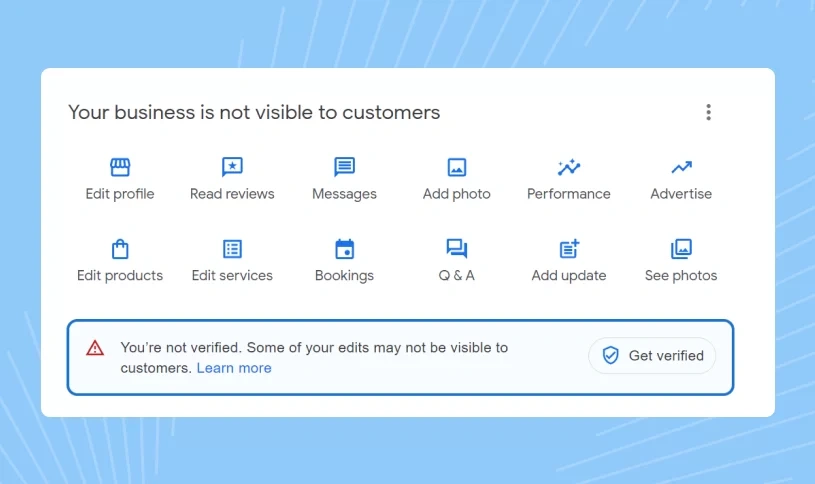
Image Source: Klima Szerelo Budapest
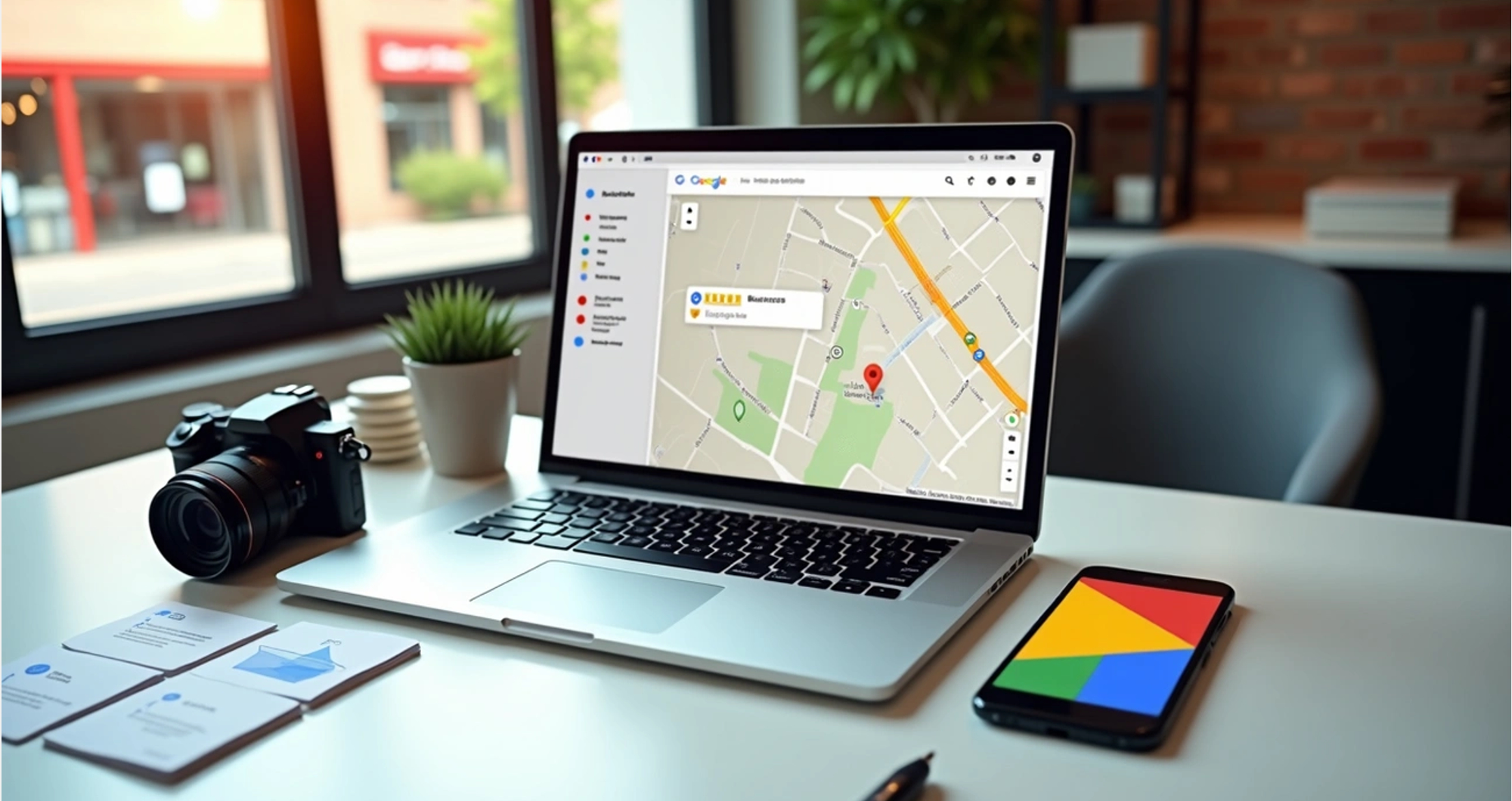
A properly set up and verified Google Business Profile is the key to successful SEO for Google Business. Your business will show up correctly in local search results and Google Maps, which will substantially boost your local visibility.
Create or claim your profile
You need to check if your business already exists on Google before creating a new profile. Google Business Profile works for businesses that meet customers in person during business hours, not just online businesses. Here’s how to create a new profile:
- Go to business.google.com/add
- Click “Add your business to Google”
- Follow the on-screen instructions to enter your business details
Your business might already appear on Google Maps without your management. You can claim it this way:
- Search for your business name and city on Google or Google Maps
- Select the business listing
- Click “Claim this business” and then “Manage now”
- Select a verification option and follow the instructions
Someone else might have already verified the profile. You can request ownership by selecting “Request access” and filling out the form.
Add accurate business details
Your Google Business Profile needs precise information to rank better in local searches. Google looks at how accurate and complete your profile is when deciding rankings.
Here’s the most important information you need:
- Business name: Use your name exactly as it appears on your business’s signage and branding
- Business category: Pick the main category that matches your business, plus up to nine secondary categories
- Service area: List the areas where you work – this matters most for service-area businesses
- Contact information: Add your phone number (mobile or landline, not fax) and website URL
- Business hours: Put in your regular hours and special holiday hours
On top of that, it helps to add attributes like “Wi-Fi available” or “Outdoor seating”. These details help customers make better choices.
Verify your listing with Google
Getting verified proves you own the business and lets you manage your profile. Unverified listings don’t show up as well in search results, which makes verification a vital part of Google Business Profile optimisation.
You can verify your business through:
- Video recording: Make an unedited video showing your location, business proof (signage, storefront), and management proof (access to employee-only areas)
- Phone or text: Get a code through a call or SMS to your business phone
- Email: Receive a code at your business email matching your website’s domain
- Postcard: Get a physical postcard with a code sent to your address
- Live video call: Show your business and management to a Google representative through video
Google takes up to five business days to review your verification. After verification, you’ll have full control of your profile to make updates and improve your SEO for Google Business Profile.
Keep in mind that changing your business name, address, or category during verification might cancel your code. You’ll need to start over if this happens.
Complete and Optimise Core Business Information
A complete and accurate Google Business Profile helps your business appear in local search results. Your next step after setup should focus on optimising your basic business information.
Add business hours and holiday hours
The right business hours build customer trust and enhance their experience. Here’s how to set them up:
- Go to your Business Profile and select “Edit profile” then “Hours”
- Add your regular business hours for each day of the week
- Create two entries for the same day with different times if you have mid-day breaks
- Add special hours for holidays or temporary changes
Businesses with different department timings need separate Business Profiles. Seasonal operations should set regular hours during active seasons and mark themselves as “temporarily closed” when inactive.
Write a keyword-rich business description
Think of your business description as a digital elevator pitch that needs to be brief yet compelling, limited to 750 characters. Here’s what you should do:
- Put your main offerings and unique value proposition in the first 250-300 characters – that’s what shows before “Read More”
- Blend 3-5 relevant keywords naturally in your text
- Tell people about your services, mission, and history
- Skip promotional content, URLs, prices, or special offers
Google uses your description to determine local search relevance, but don’t overdo the keywords.
Choose the right business categories
Categories show Google what your business is at its core, not just what it does. This makes a big difference for seo for Google Business Profile success.
Your primary category is your most powerful ranking signal in local searches. Be specific with your choice – “Pizza Restaurant” works better than just “Restaurant”. Google gives you about 4,000 category options, but stick to 1-3 focused categories that match your main business.
Pick secondary categories that complement your primary business without spreading too thin. Top-ranking local businesses typically use fewer, more specific categories, according to Google My Business optimisation experts.
Add relevant business attributes
Business attributes make your profile stand out in search results. These features:
- Show up on your Business Profile across Google platforms
- Get your business into searches for specific attributes
- Cover amenities (Wi-Fi, outdoor seating), payment options, accessibility features, and identity markers (women-owned, veteran-owned)
To add attributes, open your Business Profile, click “Edit profile > More,” and select from the options under various categories. Available attributes vary based on your business category and location.
A well-optimised Google Business Profile optimisation of these elements boosts your local search visibility and gives customers the information they need to choose your business.
Enhance Your Profile with Visual and Interactive Elements
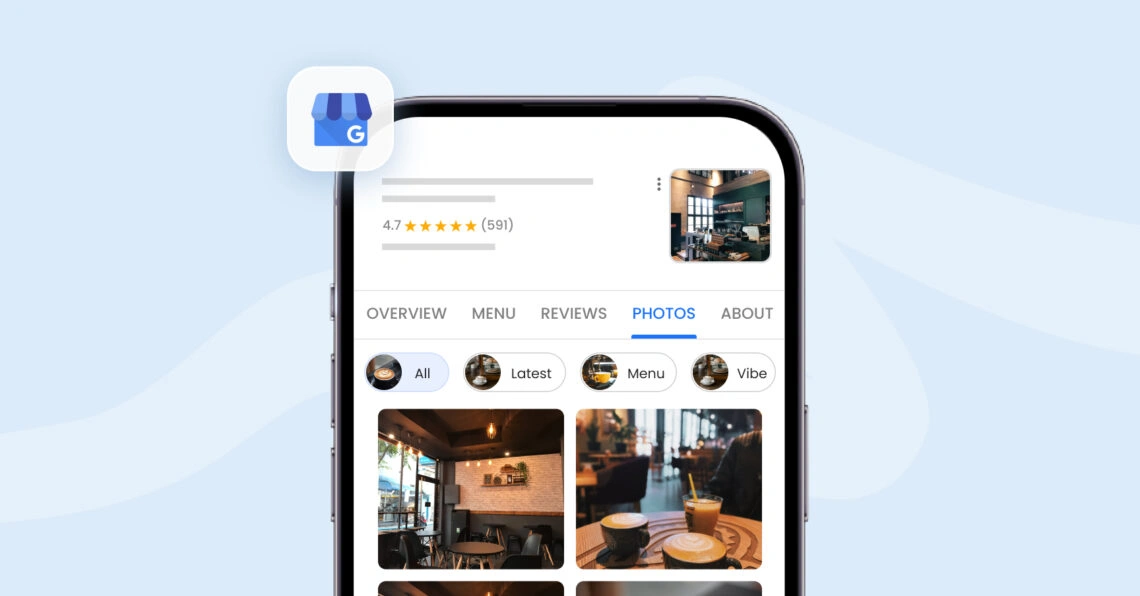
Image Source: Birdeye
Visual and interactive elements make your Google Business Profile work better and improve your visibility in local search results.
Upload high-quality photos and videos
The photos and videos you add to your profile directly affect how customers interact with it. Businesses with recent photos get more clicks to their websites. Your photos should meet Google’s specifications: JPG or PNG format, between 10 KB and 5 MB, with a recommended resolution of 720 px tall and wide.
Make sure you include these types of photos:
- Logo (helps customers recognise your business)
- Cover photo (appears at the top of your profile)
- Business photos (exterior, interior, team, products)
Videos create even stronger connections—85% of Facebook videos are watched without sound, as movement alone grabs attention. You can upload videos up to 30 seconds long with a maximum file size of 75 MB and a resolution of at least 720p. Remember that videos must be shot at your business location and show your offerings.
Add products and services with descriptions
The Product Editor lets you showcase your inventory right on your Google Business Profile. Each product needs a high-quality image (1,200 x 900 pixels recommended), product name (58 characters maximum), category, and description (1,000 characters maximum). Products stand out in your Business Profile and help more customers find you.
This feature works like mini-ads inside your Google listing. Products appear above other sections, so customers see them first.
Enable messaging for direct contact
Google Business Profile Messaging lets potential customers reach you directly from your listing. Here’s how to turn it on:
- Go to your Business Profile
- Click “Edit profile > Contact”
- Next to ‘Chat’, select “Edit”
- Choose the WhatsApp or text message option
You should reply within 24 hours. Quick responses show reliability and help you keep this feature active.
Use the booking or appointment feature
The booking feature lets customers schedule appointments through your Google Business Profile. This simple process can increase appointments by up to 40% compared to phone-only booking systems.
You can set up bookings by connecting with third-party scheduling providers through “Reserve with Google” or by adding your own booking link. This gives you access to useful data like total revenue, popular services, and how often customers book.
Boost Engagement with Reviews, Posts, and Q&A
Customer interaction tools are great ways to improve your Google Business Profile’s performance. These engagement features can substantially boost your local search visibility.
Encourage and respond to customer reviews
Reviews are vital social proof that directly shape customer decisions. Businesses with more reviews and solid star ratings usually appear in the “Local 3-Pack” at the top of search results. Here’s how to handle reviews:
- Thank customers by name and mention specific details from their feedback
- Address negative reviews quickly and professionally without getting defensive
- Move conversations offline by providing contact information to resolve issues
- Sign your reply with your name or initials to add authenticity
Quick responses to reviews show potential customers you care about feedback. Research shows 67% of people who leave reviews will come back to a business that responds promptly.
Publish regular Google Posts
Google Posts let you share updates right on your Business Profile. Users see these posts in the “Updates” tab on mobile and the “From the owner” section on desktop. You can create three types of posts:
- Updates: Share general business news with optional action buttons
- Offers: Promote sales with dates, descriptions, and coupon codes
- Events: Showcase upcoming events with titles, dates, and times
Posts stay active for six months, but Google suggests refreshing content often. Make sure your posts follow Google’s content policies before publishing – keep them professional, respectful, and avoid regulated goods content.
Add and manage FAQs in the Q&A section
Q&A features let users ask questions about your business publicly on Google Maps. Anyone can answer these questions, so active management matters:
- Start by asking and answering common questions yourself
- Check regularly for new questions and answer them quickly
- Write evergreen answers and update them when needed
This section takes up valuable space in your Knowledge Panel. Answering common questions helps improve user experience and reduces repeated inquiries to your business.
Maintain and Monitor for Long-Term SEO Success
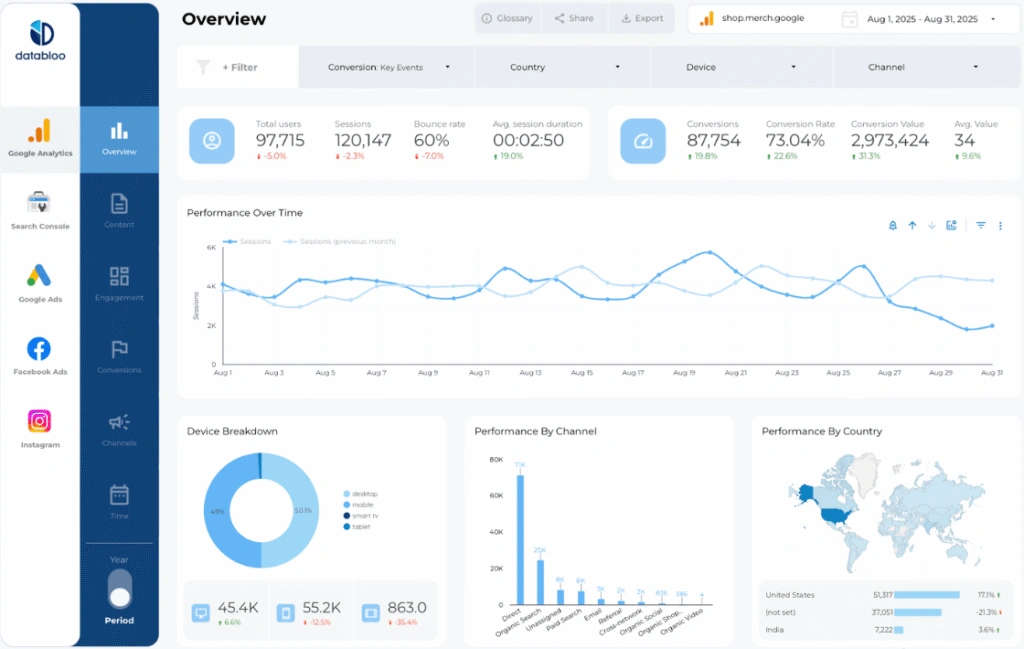
Image Source: Data Bloo
A well-managed profile is the lifeblood of successful SEO for Google Business. Search engines and customers trust your business information better when you manage to keep your profile in good shape.
Keep your information up to date
Your profile needs regular audits to stay accurate and relevant. Google collects information from sources of all types, including user reports, and might update your profile on its own. The core team should review the profile every quarter to ensure accuracy—this matters most for business hours, address changes, and service updates. Wrong information affects customer trust badly. Customers might doubt everything else if your profile shows you’re open when you’re actually closed.
Use UTM parameters to track clicks
UTM parameters help you separate Google Business Profile traffic from other sources in your analytics. These tracking codes show which parts of your profile get the most attention:
- Add parameters to your website link using the format: ?utm_source=google&utm_medium=organic&utm_campaign=gbp_tracking
- Keep parameters lowercase so you don’t get case-sensitive reporting errors
- Use the same parameter naming style for all locations
Monitor performance with Google Insights
The performance data shows how people find and interact with your profile. These are the key numbers to watch:
- Searches: Words people type to find your business
- Views: How many different people visit your profile (split by platform and device)
- Actions: Calls, direction requests, website clicks, and messages
Avoid violations to prevent suspension
Profile suspension can instantly stop more than half of local asks. You’ll get in trouble for:
- Stuffing keywords into business names
- Putting the wrong business information
- Using virtual offices without staff
- Making multiple listings for one location
Remember, don’t create a new profile while you’re waiting for your appeal if you get suspended.
Conclusion
A well-optimised Google Business Profile is a vital part of any local SEO strategy. Businesses with complete profiles get many more views, clicks, and end up getting more conversions from potential customers in their area.
You can position your business for maximum visibility in local search results by doing this. The verification process might take time, but it proves your legitimacy to Google and customers. On top of that, it helps when you pick the right categories and provide accurate information. This tells Google exactly when to show your business to searchers.
High-quality photos and videos boost customer participation rates. Features like messaging and appointment booking make your customers’ trip smoother. Businesses that respond to reviews and post updates show they care about customer service.
Successful local businesses know their Google Business Profile needs constant attention. They prevent wrong information with regular updates. Google Insights gives them a full picture of what works and what doesn’t. Following Google’s guidelines keeps your profile safe from suspension, which could cut off half of your local customers asks.
Your Google Business Profile works as your digital storefront in local search. Customers make quick decisions based on what they see before visiting your location or website. Time spent on this vital digital asset brings real returns through better visibility, stronger credibility, and more customers at your door.