


Want to simplify the management of your WooCommerce store? You can do that by learning how to set up WooCommerce Inventory Management that keeps your stock updated and accurate. First, go to WooCommerce → Settings → Products → Inventory and turn on “Manage stock” to let WooCommerce track all product levels. Then edit each product by opening the Inventory tab and setting its stock quantity, backorder rules, and low-stock alerts for better control.
If your store often faces stock errors or late updates, this guide will help you fix that. In this article, you will learn how to set up global settings, adjust product-level stock, and keep everything updated with simple checks. Follow along to keep your store smooth and well-organised.
WooCommerce Inventory Management- How it Function?
Managing stock in an online store is very important. WooCommerce helps store owners handle inventory in a simple way. It lets you track products, update stock levels, and manage backorders. Let’s look at how WooCommerce inventory management really works.
Stock Quantity Tracking
WooCommerce inventory management tracks how many items are left in your store. When someone buys a product, the number reduces automatically. If you add new stock, you can update the quantity from the dashboard. This helps store owners always know what is in stock and what needs to be restocked.
Stock Status Management
You can easily set the stock status of each product. It can show “In Stock,” “Out of Stock,” or “On Backorder.” This tells buyers if they can order now or need to wait. Keeping the stock status updated helps avoid confusion and keeps customers happy.
Backorder Options
Sometimes, customers want to order items that are not in stock. WooCommerce allows you to enable backorders for such cases. You can choose to allow all backorders or only from certain customers. This setting makes sure that sales are not lost, even when stock runs low.
Product-Level Settings
Each product in WooCommerce can have its own inventory settings. You can control how much stock each product has and if it allows backorders. This is useful when you sell different types of products. You can manage them separately without changing global settings every time.
Low Stock Notifications
WooCommerce inventory management sends alerts when stock gets low. These notifications help you restock before items run out. You can set the alert level yourself, depending on your product demand. It saves time and keeps your online store running smoothly without any stock issues.
Managing Variable Products
If you sell products with different sizes or colours, WooCommerce helps manage them easily. Each variation can have its own stock level. You can edit or update them anytime from the product settings. This keeps everything organised and prevents mistakes in stock handling.
Reports and Stock Overview
WooCommerce offers simple reports to view stock levels. You can see which items are selling fast or going out of stock. These reports help plan future stock orders better. It gives you a clear view of your store’s inventory at a glance.
How to Set up WooCommerce Inventory Management?
You can set up WooCommerce inventory management by turning on stock tracking in the main settings and setting stock levels for each product. Once it’s set up, you can easily check, update, and manage your store’s stock. Read the full tutorial below to learn the complete setup process step by step.
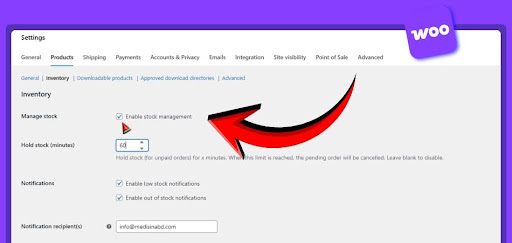
Step 1: Configure Global Inventory Settings
Setting up your global inventory settings helps WooCommerce manage your stock automatically across all products. It ensures the entire store follows the same rules for stock tracking and notifications. Look below to learn how to set it up properly.
Enable Stock Management
Go to WooCommerce settings from your WordPress dashboard and open the “Products” section under “Settings.” Click the “Inventory” tab and check the box to enable stock management for your online store. This step allows WooCommerce to track product quantities automatically and update availability when sales occur.
Set Stock Holding Duration
Under the inventory tab, find the “Hold stock” option to define how long unpaid orders keep reserved items. Enter a time duration in minutes before the order gets canceled and the stock becomes available again. This ensures unpaid orders don’t hold inventory longer than necessary, keeping stock levels accurate for real customers.
Configure Notifications and Visibility
Enable email alerts for low stock and out-of-stock products in your WooCommerce inventory settings. Set the quantity limits that trigger these notifications to help you restock products before running out. You can also choose to hide out-of-stock items from your catalog to improve customer experience.
Step 2: Configure Individual Product Inventory
Once global settings are in place, you can manage stock for each product separately for better control. This step helps you fine-tune stock quantities, backorders, and other product-specific inventory options. Look below to set up inventory for individual products.
Enable Product Stock Tracking
Go to the “Products” section and select a product to edit or create a new one. In the “Product Data” box, open the “Inventory” tab and check “Manage stock?” to track it individually. This option lets WooCommerce automatically reduce stock when someone purchases that specific product.
Set Product Stock Quantity
Enter the number of items available for that product in the “Stock quantity” field. WooCommerce automatically adjusts this number each time a customer completes a purchase. Accurate stock counts help you avoid overselling and keep your shop data up to date.
Customise Product-Level Settings
Set a low stock threshold to get alerts when that product is nearly sold out. Choose how to handle backorders, allowing or preventing purchases when the item is unavailable. You can also enable “Sold individually” to limit one purchase per order if needed.
Step 3: Monitor and Manage Stock
After setting everything up, you’ll need to keep an eye on your stock levels regularly. Monitoring helps you maintain accurate quantities and plan for restocking before products run out. Look below to learn how to monitor and manage your inventory easily.
Check Stock Status Reports
Go to WooCommerce reports and select the “Stock” section under the “Reports” tab. Here you can view current inventory levels, low stock products, and out-of-stock items. These reports give a clear picture of your store’s inventory health at any time.
Use Bulk Editing for Multiple Products
Select multiple products at once and update stock quantities together using the bulk edit option. This saves time when managing many products or making stock adjustments during sales events. It’s an efficient way to handle large inventories without editing each product manually.
Enhance Management With Plugins
Explore inventory management plugins available in the WooCommerce marketplace that support WooCommerce inventory management for multiple locations in a simple and organised way. Plugins can also add advanced features like multi-location tracking and automatic restocking tools. These options make inventory management more powerful and fit your store’s specific needs.
Who Really Needs to Set Up WooCommerce Inventory Management?
Online stores work better when the stock is easy to check and update. WooCommerce inventory settings help different sellers control products with less stress. Here are the groups that gain the most from setting it up.
- Small Business Owners: People selling many items online need simple tools that help track stock quickly without confusion. WooCommerce gives clear controls that prevent mistakes and keep products ready for buyers.
- Growing E-commerce Stores: Shops getting more orders each week need automation that keeps stock counts steady during busy sales periods. These tools help stop overselling, so customers always get clear product details.
- Sellers With Many Product Types: Shops with sizes, colours, or bundles need a clean system that updates each variation correctly. WooCommerce makes it easy for owners to manage detailed stock levels.
- Stores With Limited Storage: Sellers holding small stock amounts need alerts that warn them when numbers fall too low. WooCommerce helps them restock on time and avoid lost sales.
- Wholesale and Bulk Sellers: Businesses selling in high amounts need clear limits that stop buyers from ordering more than what is available. WooCommerce helps set strong inventory rules that protect order accuracy.
- Dropship and Backorder-based Stores: Shops working with suppliers need settings that allow safe backorders when items are not in stock. WooCommerce gives flexible options that match supplier timelines and customer needs.
Plugin or Default WooCommerce Inventory Management: Which Is Better?
Many online store owners wonder if using a plugin is more beneficial than using the default WooCommerce tools. The right choice depends on the needs of the store and how deep the inventory control must be. Below is a comparison to help you decide.
| Aspect | Default WooCommerce Inventory | Plugin-Based Inventory Management |
| Ease Of Setup | Comes ready after installing WooCommerce. You just turn the inventory on. | Requires extra installation and setup. Might need configuration. |
| Basic Features | Tracks stock count, status, and basic backorders. | Adds advanced tools like low-stock alerts, bulk edits, and reports. |
| Handling Many Products | Works fine for small catalogs with few products. | Works better if you have many items or complex stock needs. |
| Managing Variations | Lets you manage each variation manually. | More efficient for many variations; easier bulk updates. |
| Stock Alerts And Notifications | Only basic alert options or manual checking. | Often includes full alert settings and automatic warnings. |
| Reporting And Analytics | Minimal stock reports. Hard to get a full inventory view. | Adds detailed reports and insights for better stock planning. |
| Flexibility And Custom Rules | Limited to core WooCommerce rules and options. | Allows custom rules, layers, and flexible stock controls. |
| Cost And Performance | No extra cost. Less chance of a slow site due to plugins. | May add cost or slow the site if the plugin is heavy or poorly coded. |
Choosing the default WooCommerce works fine for small, simple shops with few products. If you run a larger or changing store, a plugin gives stronger tools and easier control.
How Often Should You Check and Update Your Online Store’s Inventory Settings?
Checking stock levels frequently improves the efficiency of online stores. Many things can change each day in a digital store. Simple checks help stop stock issues before they cause trouble. Here is how often you should update your inventory settings.
Daily Stock Checks
Many stores do best with short daily checks. These checks help you catch low stock or missing items before buyers see them. A quick look at your product list each day keeps things steady. You can also spot any odd changes fast and fix them with little stress.
Weekly Inventory Updates
Some stores with slow-moving items can update stock once each week. This works well when you do not handle large order numbers daily. A weekly update keeps your store fresh and reduces mistakes. It also gives you time to plan restocks for the next week.
After Big Sales Events
Large sales can cause stock numbers to drop very fast. Once the event ends, it is smart to check all product levels. This helps you avoid selling items you no longer have. Big events can also show which products need faster restock plans.
When Adding New Products
Each new product needs clean stock settings before it goes live. This includes setting stock counts, limits, and backorder rules. Updating them early stops mix-ups that can confuse buyers. Clear settings also help your store show the right status for each item.
During Seasonal Changes
Some items sell more in certain seasons, so stock levels need careful checks. These changes help you plan ahead and avoid running out. You also get a better idea of fast-selling products. Seasonal checks guide you in planning better stock for future months.
Troubleshooting Common Inventory Errors
Many store owners face small errors in their stock system. These errors can confuse buyers and slow down store sales. Simple checks can fix most problems before they grow bigger. Read on to learn how to resolve common inventory issues.
Wrong Stock Count
Mistakes in stock count often happen when numbers are not updated on time. A quick daily check helps catch these early. Look at your orders and match them with your stock list. Fixing the number fast stops overselling and keeps your store running smoothly for buyers.
Missing Product Updates
Some items may not show the right stock status after edits. This can confuse buyers who want clear product details. Check if the product settings were saved correctly and reload the page. If the issue stays, re-enter the details to make sure everything updates the right way.
Backorder Problems
Backorder settings may cause trouble if they are set wrong. You might allow orders for items that are not coming soon. Check each product setting to see if backorders should be on. Clear rules help you avoid customer issues and keep your stock list honest.
Variation Stock Errors
Products with sizes or colours can have missing stock numbers. This happens when one variation is left unchecked. Open each version and match the stock count carefully. Fixing these small mistakes helps buyers see the right options and reduces refund requests later.
Slow Stock Refresh
Sometimes stock updates take time to show on the site. This delay often comes from caching or slow settings. Clear your cache and check if changes appear after a refresh. Simple steps like this help your store show correct stock faster for all users.
Duplicate Products
Extra product copies can cause stock numbers to be spread out incorrectly. You might end up with two items showing different counts. Delete extra copies and keep only the right one in your store. This step keeps your stock clean and easy to track each day.
Concluding Words
Operating a store without proper inventory control can cause real stress. Once you understand how to set up WooCommerce inventory management, things become easier. You’ll feel more in control knowing your store updates stock automatically and keeps products visible for buyers.
Take time to adjust settings that match your business size and goals. Even small changes, like alerts or product-level edits, can make a big difference. It’s all about staying ready and avoiding last-minute surprises.
Now that you know how to manage it the right way, put it into action. Keep your inventory updated, review reports often, and let WooCommerce handle the hard parts for you.